Vellum Shell is an ink-inspired desktop shell for Quickshell and Hyprland. It provides a multi-monitor top bar, application launcher, notification center, media dashboard, system controls, appearance management, and a separate Wayland session lock.
The project targets Arch Linux, CachyOS, and Fedora Linux with Hyprland 0.55 or newer. It uses Hyprland's native Lua configuration API and assumes Kitty for terminal helpers.
Features#
- Per-monitor wallpaper layers and top bars with Hyprland workspaces.
- MPRIS media status, Cava visualization, clock, network, VPN, audio, notifications, system tray, system monitor, optional battery status, and power controls.
- Application launcher with desktop-entry search and frecency ranking. One prefix-free field searches applications, shell actions (lock, shutdown, appearance, screenshot) and emoji at once, and evaluates anything that looks like a maths expression.
- Launcher project mode (
>) for directories under~/Projects. - Terminal desktop entries (
Terminal=true, such as Neovim or btop) open in the default terminal instead of being started without a TTY. Settings > Default apps picks it from the installedTerminalEmulatorentries and stores it as the first line of~/.config/xdg-terminals.list(the xdg-terminal-exec list); without one, Kitty is used. GLib launches (xdg-open, file managers) only read that list throughxdg-terminal-exec; without it they fall back to their own order, which skips Kitty and picks e.g. Konsole. The floating helpers (btop, installers, About) stay on Kitty. - Clipboard history with text and image previews, activation, and deletion.
- Notification server with toasts, history, actions, unread state, and DND.
History and DND survive a shell restart (kept in
$XDG_RUNTIME_DIR, so they are gone after logging out); restored entries have no actions. - Notification center grouping per application, with collapsible groups, per-group unread counts, and per-group clearing.
- Media dashboard: an album-art player above a compact calendar, weather, and system statistics row.
- Google Calendar events in the calendar card and its expanded view, after a one-click sign-in on the Settings Calendar page (read-only access).
- PipeWire audio mixer, NetworkManager controls, volume OSD, and Polkit agent.
- NetworkManager secret agent: Wi-Fi, WEP, 802.1X and PPPoE passwords are asked
in a shell dialog instead of through
nm-applet. Passwords saved "for this user only" go to the keyring under the same attributesnm-appletuses, so existing ones keep working. - Settings Sound page: default output and input, volume and mute, moving an application to another device, and sound card profiles (HDMI or analog, stereo or surround, Bluetooth codecs).
- Removable-device popup with mount, unmount, open, and safe power-off actions.
- Full-screen wallpaper and theme pickers in a skewed carousel, including an optional wallpaper-derived palette. Themes preview live on the running shell and are written out once you settle.
- Screenshot modes for smart selection, windows, workspaces, and regions.
- Multi-monitor Wayland lock screen with PAM authentication.
- Settings application in a real resizable window, with Hyprland display arrangement, tiling and decoration, input devices, a drag-and-drop top-bar layout editor, default applications, system diagnostics, XDG autostart entries, systemd user services, desktop preferences, and searchable keybindings. Every bar module can be reordered, moved between the left, center and right zones, or hidden.
- Searchable Launcher actions for guided package, AUR/COPR, web app, and terminal app installation and removal.
Popups are loaded on demand and coordinated so that overlapping shell surfaces do not remain open at the same time.
Requirements#
Core#
- A Wayland session running Hyprland.
- Quickshell with Hyprland, PipeWire, MPRIS, notifications, system tray, PAM, Polkit, UPower, and Wayland support.
- PipeWire, NetworkManager, and udisks2.
- Rust (
cargo) to build the backend. The shell starts without it, but with no theming and no system state. - A Nerd Font for the shell icons, preferably
Symbols Nerd Font Mono. - Standard command-line tools such as
bash,hyprctl, andjq. The backend reads NetworkManager and udisks2 over D-Bus, soip,lsblk,udisksctl,curl, andmatugenare no longer needed. Two tools are still required: the backend usesnmclifor Wi-Fi scanning and connection changes, andjqis used by the screenshot and lock-screen helper scripts.
Feature dependencies#
Some features remain usable when their optional tool is missing, while others require the corresponding command:
| Feature | Commands |
|---|---|
| Launcher calculator | qalc |
| Media position control | gdbus |
| Settings sound card profiles | pw-dump, wpctl |
| Moving an application to another output | pactl (libpulse on Arch, pulseaudio-utils on Fedora) |
| VPN plugin password prompts (OpenVPN, OpenConnect) | nm-applet (optional, not started by default) |
| Audio visualization | cava (optional) |
| Battery status | UPower daemon (optional) |
| AI usage panel | codex and/or claude CLI with an active subscription login |
| Weather | Internet access to Open-Meteo (the backend does the request) |
| Google Calendar | A browser for sign-in and a one-time Desktop OAuth client from Google Cloud Console |
| Screenshot capture | grim, slurp, magick, hyprctl, jq; the selection freezes the screen with wayfreeze or, failing that, hyprpicker, and still works without either |
| Screenshot extras | snip (optional editor), wl-copy, notify-send, xdg-user-dir |
| Interactive utility scripts | fzf, Kitty |
| Package management | pacman plus paru/yay on Arch; dnf plus its COPR plugin on Fedora |
| Power profiles | powerprofilesctl or a compatible PPD D-Bus service |
| Settings default applications | xdg-mime from xdg-utils; xdg-terminal-exec so GLib apps (xdg-open, file managers) honour the default terminal |
| Settings user services | A reachable systemd user manager |
| Bluetooth settings | blueman-manager, Blueberry, or KDE System Settings |
| Removable devices | util-linux, udisks2, xdg-utils |
The package helpers detect Arch/CachyOS or Fedora at runtime. The community
package action uses the AUR through paru/yay on Arch and enables a selected
COPR before installing on Fedora. Hyprland integration uses the native Lua API
introduced in Hyprland 0.55 (hl.config(...), hl.bind(...), and hl.dsp.*).
Installation#
Clone the repository to the path expected by the shell:
git clone https://github.com/cucu0628/vellum_shell.git \
  "$HOME/.config/quickshell/vellum_shell"
Run the complete setup. It installs dependencies, creates state directories,
sets up PAM and external themes, enables required services, and installs the
Hyprland Lua modules under ~/.config/hypr/:
cd "$HOME/.config/quickshell/vellum_shell"
./setup.sh
To see what it would do first — the setup checks every prerequisite up front and prints its plan without changing anything:
./setup.sh --dry-run
The same preflight runs before a real install, so a missing Rust toolchain or an
unusable Hyprland config stops the setup before it has touched the system. It
also reports what it will not do: if you already have your own
~/.config/hypr/bindings.lua or autostart.lua, those are kept and Vellum's
versions are skipped, so the shell would come up without its key bindings. The
notice is repeated at the end of the run.
To install the Vellum login screen and make greetd the display manager as well:
./setup.sh --with-greeter
Use ./setup.sh --with-zen to modify an existing Zen Browser profile and add
the generated Vellum chrome theme. It is opt-in because it changes user.js.
The setup preserves a valid existing wallpaper selection. If none exists, put an image in the wallpaper directory; the shell selects the first image:
cp your-wallpaper.png "$HOME/Pictures/wallpapers/"
The setup installs ~/.config/hypr/autostart.lua. It starts the shell
immediately in a running Hyprland session and automatically on later sessions.
nm-applet is no longer started: the shell is NetworkManager's secret agent and
asks for Wi-Fi, 802.1X and PPPoE passwords in its own dialog. The agent is
registered only while the shell runs, so without it nmcli --ask or nm-applet
can still answer. VPN plugins with their own password dialog (OpenVPN,
OpenConnect) are left to nm-applet; uncomment its line in autostart.lua if
you use one.
Restart an already running instance with:
~/.config/quickshell/vellum_shell/scripts/theme-refresh
install.sh remains available as a package-only installer. setup.sh is the
recommended entry point for a fresh system.
Both scripts detect Arch/CachyOS and Fedora automatically. On Fedora they use
DNF and enable the lionheartp/Hyprland COPR recommended by Hyprland upstream.
Vellum needs Hyprland 0.55 or newer with its Lua configuration API. Fedora 44
and newer provide Quickshell directly. The installer keeps an existing
PPD-compatible power-profile service; otherwise it installs Fedora's default
tuned-ppd. DNF weak dependencies are disabled so the Hyprland package cannot
pull in another panel or launcher such as nwg-panel or Wofi. The package
installer passes only missing RPMs to DNF, avoiding an unrelated desktop or KDE
upgrade during setup. It targets regular DNF-based Fedora installations;
Fedora Atomic variants require their packages to be layered separately before
running ./setup.sh --skip-packages.
Removing it again#
scripts/uninstall reverses what the setup installed: the systemd user service
and the vellum binary, the generated Hyprland modules, the require lines it
appended, the include/import lines it added to kitty.conf, gtk.css, and
btop.conf, the qt6ct palette and portal environment, and the generated Neovim
colorscheme with its LazyVim spec. It is also the ownership manifest — anything not listed there was
yours before the install and is left alone, including the repository, your
wallpapers, and your screenshots.
scripts/uninstall --dry-run     # show what would be removed
scripts/uninstall               # remove it
scripts/uninstall --with-greeter --purge-state
Config files you had modified yourself (your own bindings.lua, a colors.lua
that is not ours) are reported and kept.
Usage#
Bar items open their related surfaces on the selected monitor. Every major surface is also exposed through Quickshell IPC, making it straightforward to bind shell actions in Hyprland.
The general command format is:
quickshell ipc --path ~/.config/quickshell/vellum_shell/shell.qml call TARGET METHOD
IPC reference#
| Target | Methods |
|---|---|
settings |
toggle, open, close |
menu |
toggle, open, close (alias of settings) |
launcher |
toggle, open, close |
clipboard |
toggle, open, close |
style |
theme, wallpaper, close |
power |
toggle, open, close (alias of settings) |
notifications |
toggle, dnd, close, clear, grouping, expand, collapse |
audio |
toggle, open, close, volumeUp, volumeDown (5% steps), mute, micMute |
brightness |
up, down (5% steps on the built-in display; no-op without a backlight) |
media |
toggle, open, close, calendar, weather (open with that card expanded), playPause, next, previous, volumeUp, volumeDown (the active player's own volume); overview and player are kept as aliases of open |
network |
toggle, open, close |
bluetooth |
toggle, open, close |
vpn |
toggle, open, close, connect, disconnect, app |
removable |
toggle, open, close |
lock |
lock, suspend (locks first and waits for compositor confirmation) |
about |
toggle, open, close (a floating kitty window running Fastfetch) |
screenshot |
capture, window, workspace, region |
screensaver |
start, stop, toggle |
Every overlay opens on the focused monitor and closes the others, because they
all go through app/PopupCoordinator.qml. about is the one exception: it is
not an overlay but a real window -- Hyprland floats a centred kitty running
Fastfetch -- so opening it only closes the overlays that would cover it.
The setup installs these bindings in ~/.config/hypr/bindings.lua using the
native Hyprland Lua API:
local shell = [[quickshell ipc --path "$HOME/.config/quickshell/vellum_shell/shell.qml" call]]
hl.bind("SUPER + SPACE", hl.dsp.exec_cmd(shell .. " launcher toggle"))
hl.bind("SUPER + V", hl.dsp.exec_cmd(shell .. " clipboard toggle"))
hl.bind("SUPER + N", hl.dsp.exec_cmd(shell .. " notifications toggle"))
hl.bind("SUPER + P", hl.dsp.exec_cmd(shell .. " settings toggle"))
The same file binds SUPER + SHIFT + L to the lock screen, PRINT and
SHIFT + PRINT to screenshots, and the media, volume and brightness keys. The
volume keys call wpctl directly (capped at 100%) and the brightness keys call
vellum call brightness step, so both keep working while the shell restarts;
the shell shows the OSD from the change itself. The play, pause, next and
previous keys go to the shell's active player, so playerctl is not needed;
CTRL with the volume keys steps that player's own volume. All of them work on
the lock screen.
Screensaver#
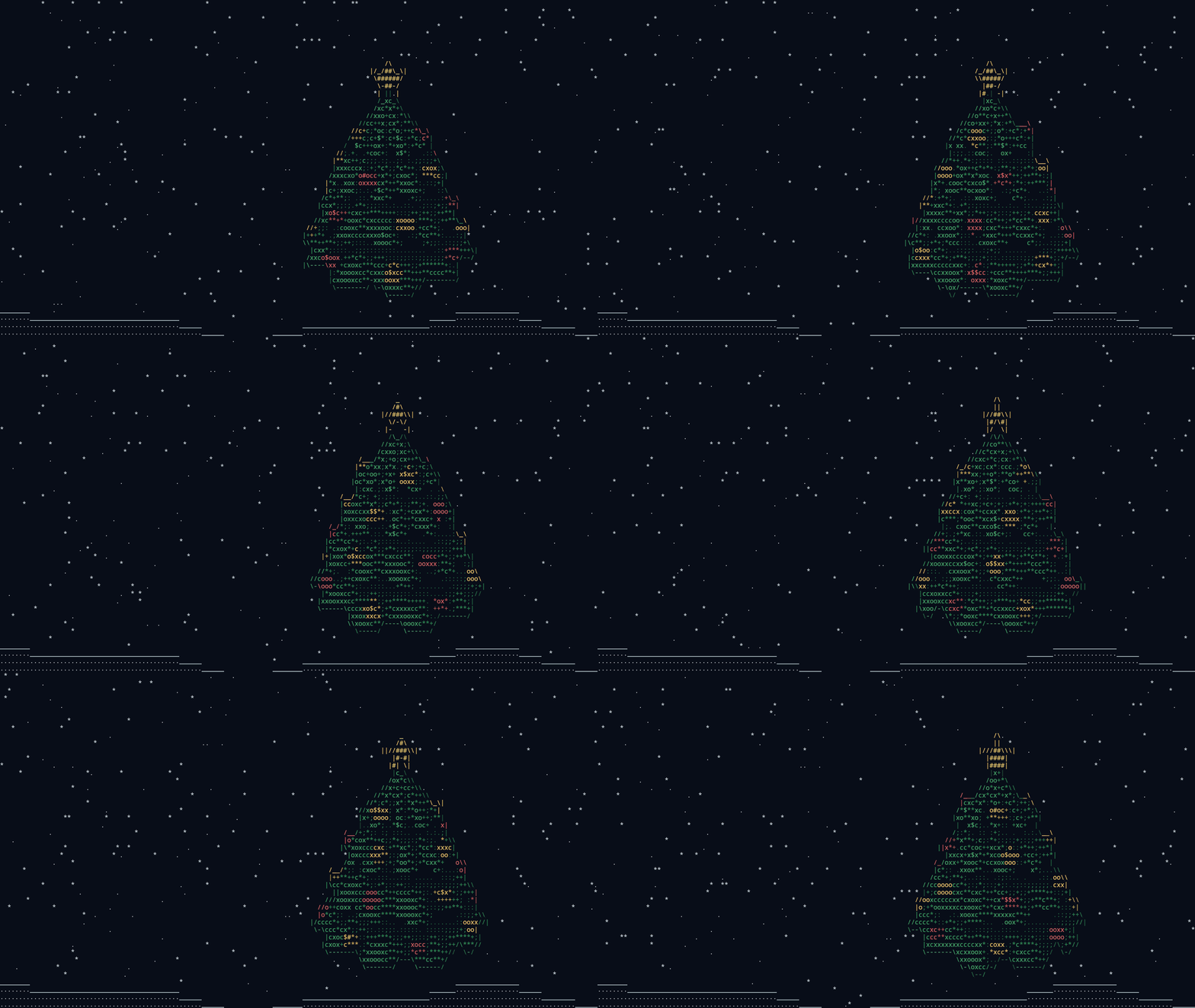
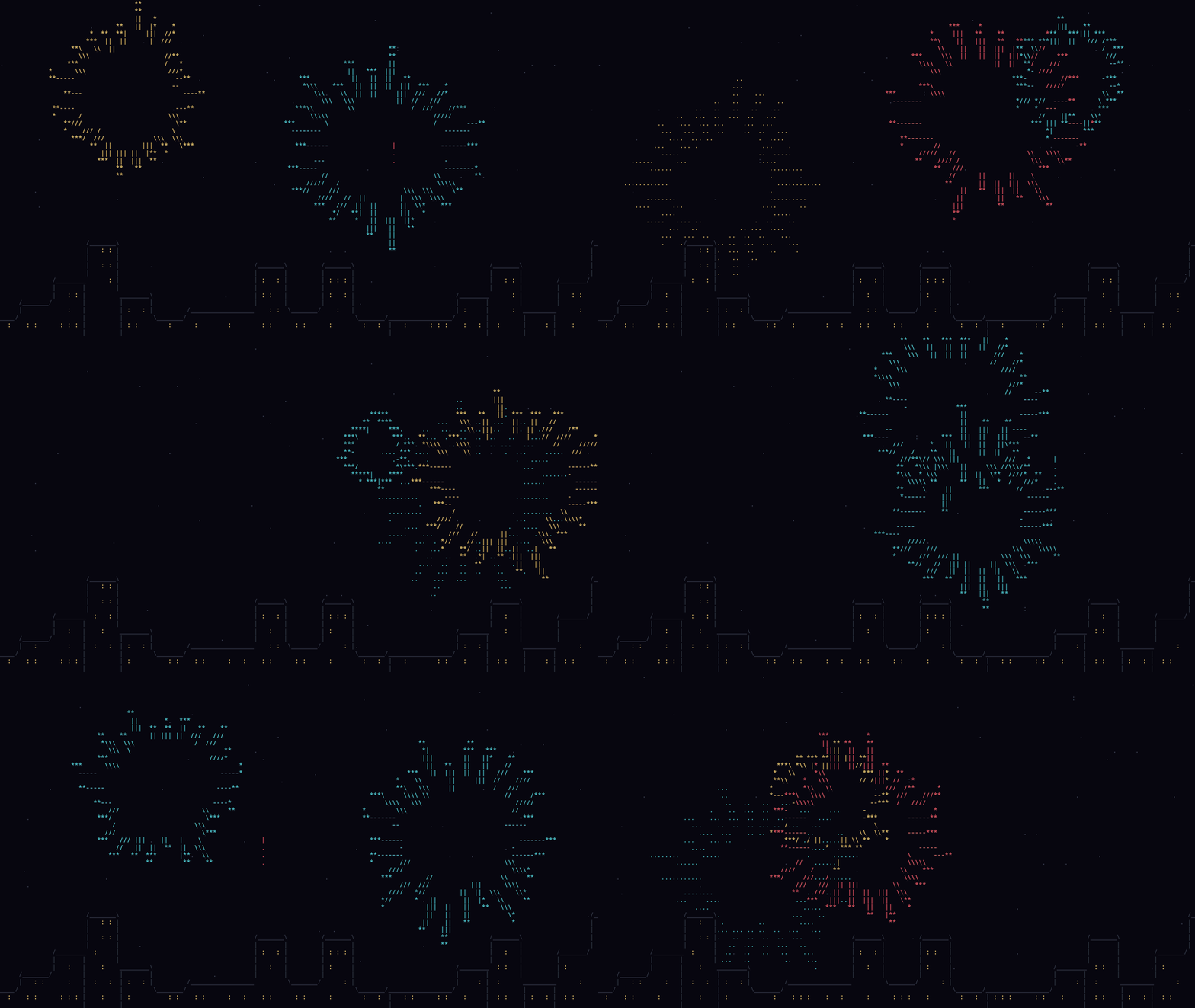
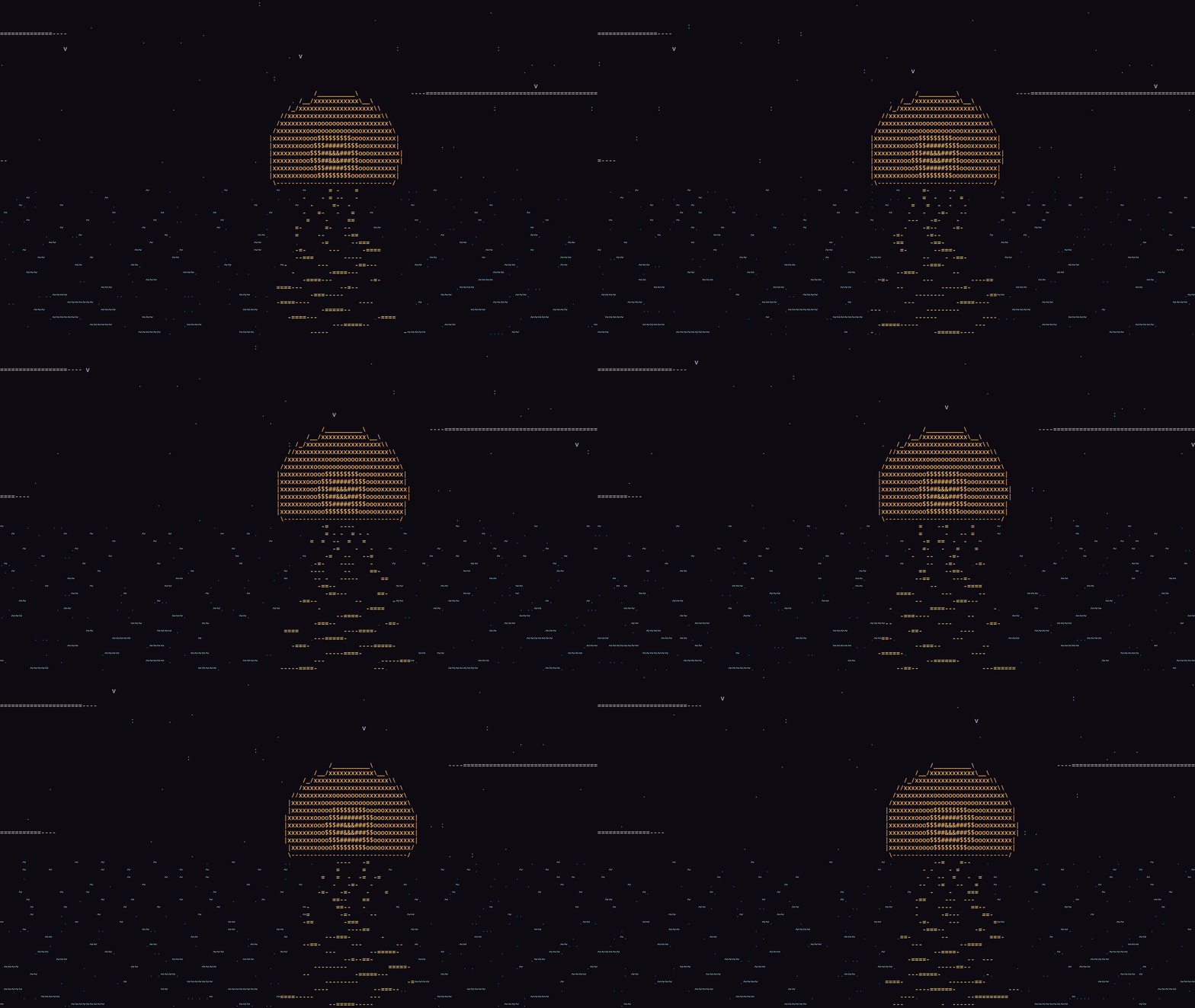
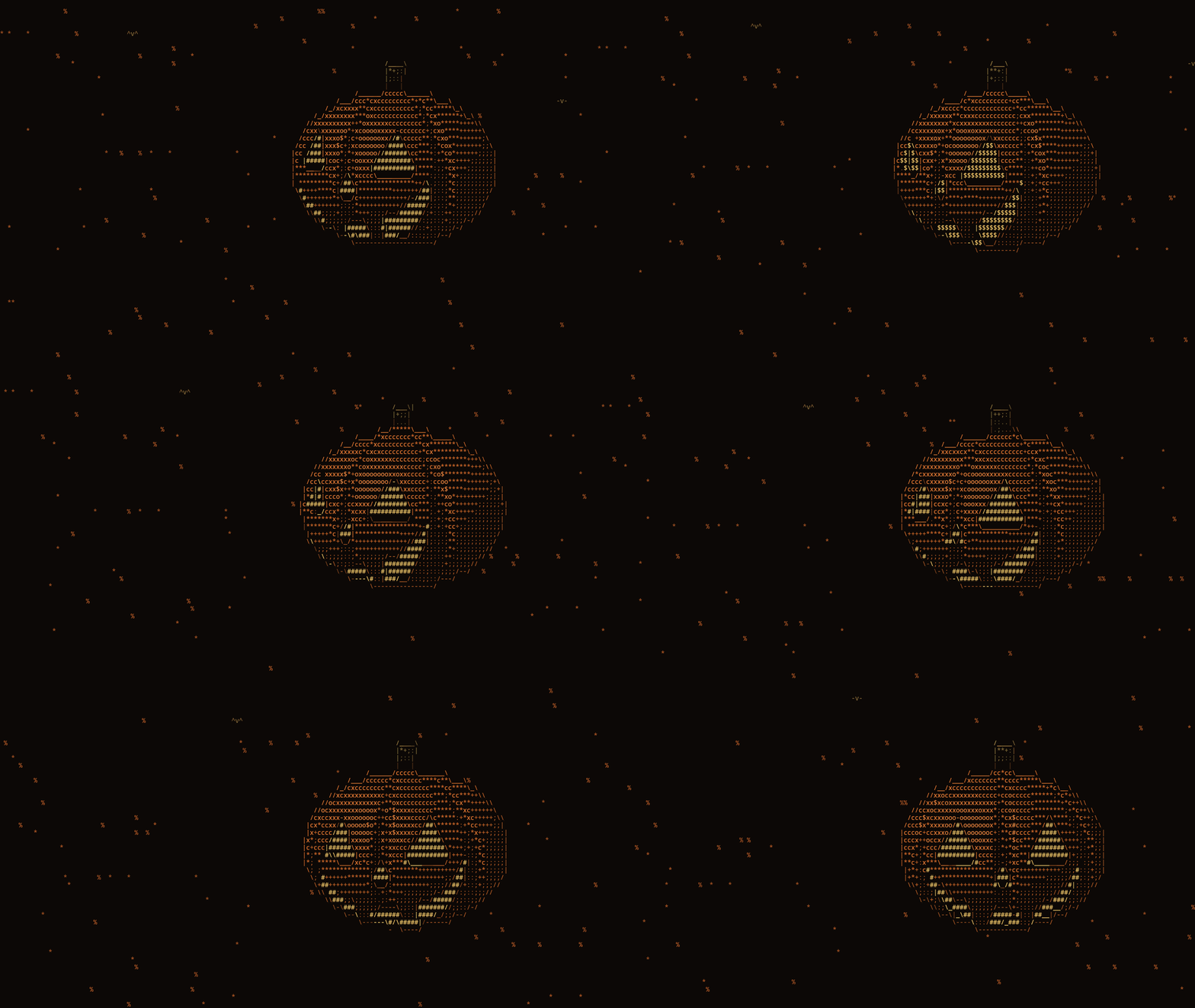
Settings → System → Screensaver after inactivity starts an ASCII animation
on every monitor after 1–30 minutes without input (off by default). Any key
press, click or mouse movement ends it; that first input does not reach the
application underneath. The mouse pointer is hidden while it runs
(scripts/screensaver-cursor toggles Hyprland's cursor:invisible and restores
the previous value afterwards; a small watcher started through Hyprland also
restores it if the shell dies while the screensaver runs).
| Christmas | New Year's Eve |
|---|---|
 |
 |
| Summer | Autumn |
 |
 |
| Shapes | |
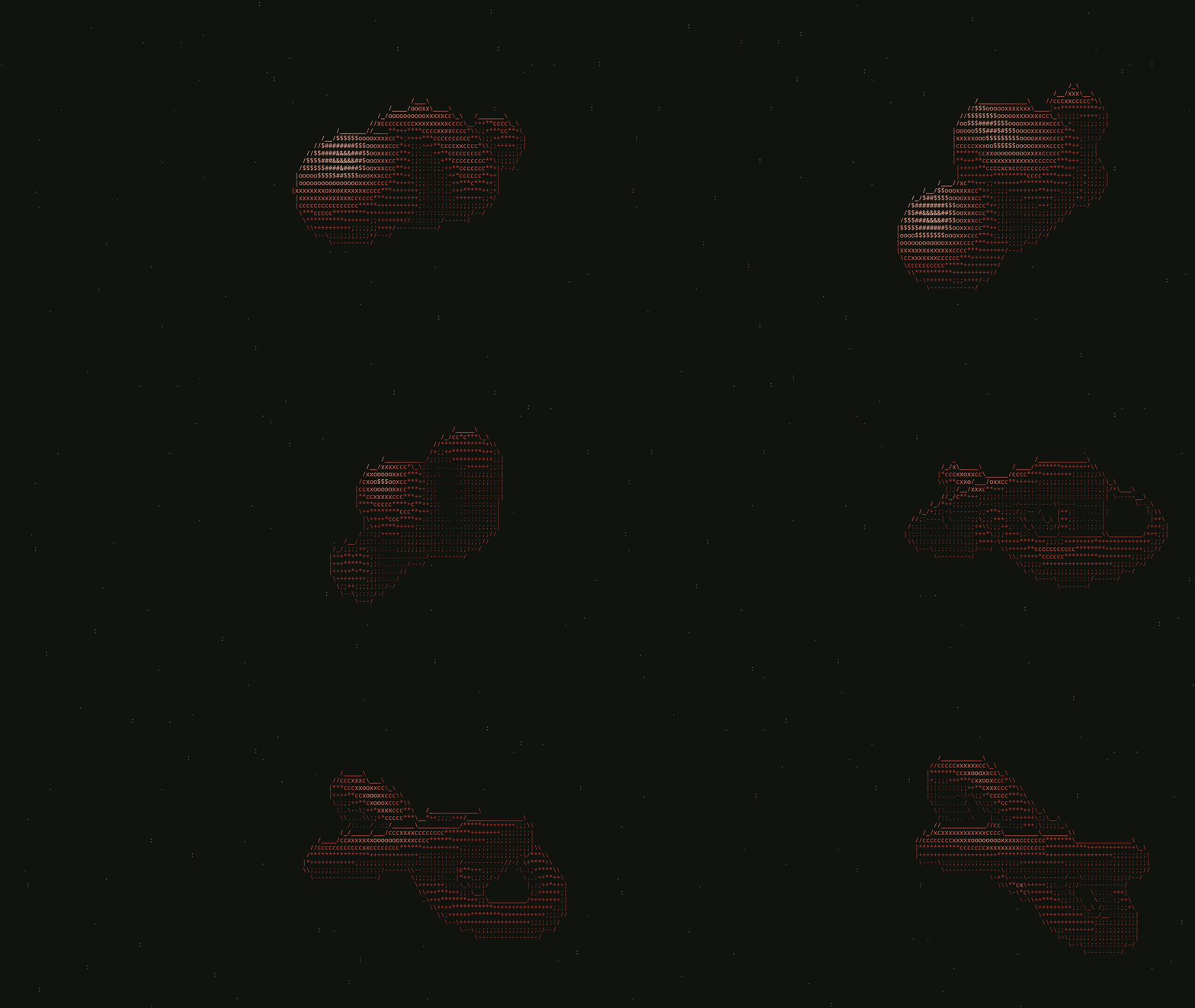 |
Orbit across monitors, recorded as two side-by-side screens. The planet sits on the boundary and the comet crosses from one screen to the other:
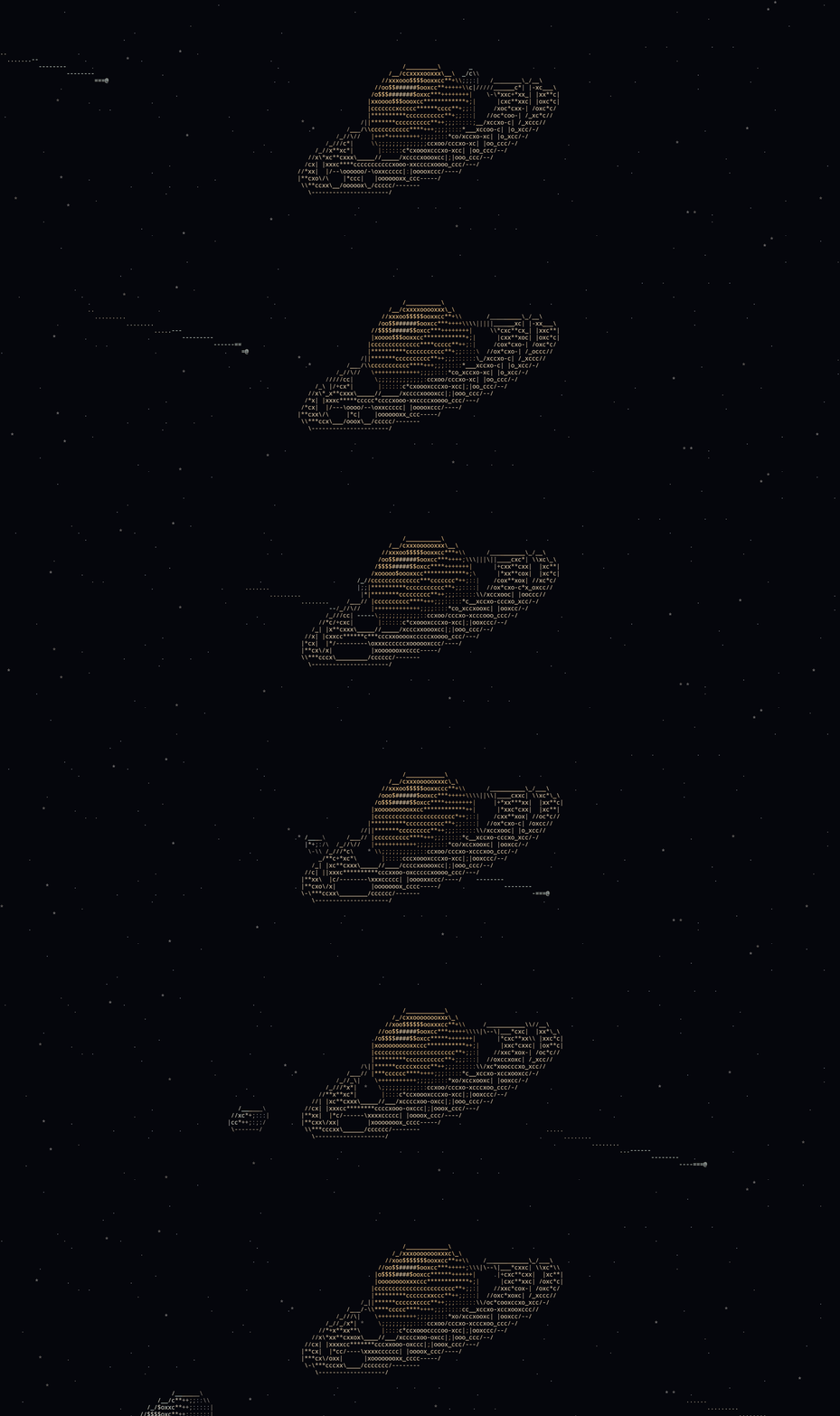
The previews play the scenes about three times faster than real time.
Screensaver theme picks the scene:
| Theme | Scene |
|---|---|
| Shapes (default) | A 3D form morphs between droplets, a knot, a lattice and a gem, in the active theme's colours |
| Christmas | A turning fir tree with baubles and a star, snowfall and snowdrifts |
| New Year's Eve | Fireworks over a city skyline with lit windows |
| Winter | A six-armed ice crystal in falling snow |
| Valentine's Day | A beating 3D heart with rising <3 |
| Easter | A painted egg with zig-zag bands, falling petals and grass |
| Summer | Sunset over the sea: waves, the sun's glitter path, gulls and clouds |
| Autumn | A carved, glowing pumpkin, falling leaves and two bats |
| Orbit across monitors | One picture over all monitors: a ringed planet on the centre of the combined desktop, an orbiting moon, a comet crossing every screen and a drifting starfield |
Every other theme draws each monitor on its own. Orbit lays its scene over the rectangle that encloses all monitors, so the picture continues across the boundary; Automatic never picks it.
Automatic by season chooses one when the screensaver starts:
| Dates | Theme |
|---|---|
| 1 Jan – 6 Jan | New Year's Eve |
| 7 Jan – 6 Feb | Winter |
| 7 Feb – 15 Feb | Valentine's Day |
| 16 Feb – 19 Mar | Winter |
| 20 Mar – 31 May | Easter |
| 1 Jun – 31 Aug | Summer |
| 1 Sep – 30 Nov | Autumn |
| 1 Dec – 26 Dec | Christmas |
| 27 Dec – 31 Dec | New Year's Eve |
The seasonal themes use their own colours. features/screensaver/ScreensaverThemes.js
holds their palettes and this calendar.
It needs no terminal or idle daemon: features/screensaver/ is a Quickshell
overlay rendered by two fragment shaders, so it costs nothing until it starts.
It does not lock the session, and it gives way to the lock screen if that
engages. Idle inhibitors and a focused fullscreen window keep it from starting.
quickshell ipc --path ~/.config/quickshell/vellum_shell/shell.qml call screensaver start
Each scene is one shaders/<theme>.frag, which includes the shared
shaders/common.glsl. The compiled .qsb files are checked in. After editing a
.frag or common.glsl, run
scripts/build-shaders, which needs the Qt 6 Shader Tools, then restart the shell
with scripts/theme-refresh. A live reload keeps using the shaders Qt has already
cached in the running process.
Lock screen#
The lock screen is hosted by the main shell and activated over IPC:
quickshell ipc --path ~/.config/quickshell/vellum_shell/shell.qml call lock lock
It creates a secure WlSessionLock surface on every monitor. Locking blurs the
current desktop wallpaper behind a themed scrim instead of cutting to black, so
the transition stays continuous in both directions; without a wallpaper the
shell palette and the logo watermark stand in. Every monitor sets a large serif
clock in the lower-left corner over a palette-tinted gradient; the input monitor
adds the user name and password field beneath it, the others echo the typed
characters and name the input monitor. Select the input monitor on the Settings app's System page, or
directly:
~/.config/quickshell/vellum_shell/scripts/lockscreen-monitor list
~/.config/quickshell/vellum_shell/scripts/lockscreen-monitor set HDMI-A-1
Authentication uses the dedicated PAM service named vellum-shell. The setup
installs /etc/pam.d/vellum-shell; no external lock-screen package is used.
When that file is missing (for example after a manual install without sudo),
the lock screen falls back to the system login service instead of refusing
every password, so a locked session can always be unlocked.
The screen also locks before the machine sleeps when something else suspends
it: closing the lid, systemctl suspend, or an idle daemon. While the shell
runs, the backend holds a logind delay inhibitor, locks on PrepareForSleep,
and lets the suspend continue once the compositor has confirmed the lock
surface, or after 4.5 seconds if the shell does not answer. Without the
daemon, only lock suspend locks first.
loginctl lock-session locks the Vellum lock screen too, so an idle daemon
such as hypridle can use lock_cmd = loginctl lock-session. The shell reports
its state to logind (LockedHint). Without an idle daemon, Settings → System →
Lock after inactivity locks the screen after 1–30 minutes without input
(off by default); fullscreen video and other idle inhibitors keep it awake.
If the shell crashes while the screen is locked, scripts/shell-run (which
shell-start and theme-refresh use) restarts it, and the new instance locks
again straight away. vellum_tuning.lua sets Hyprland's
misc.allow_session_lock_restore so that the restarted shell can take the lock
back instead of leaving the session stuck on Hyprland's fallback screen. The
supervisor gives up after five crashes within a minute.
Login screen (greetd)#
The login screen is the lock screen's own QML running as a greetd greeter:
GreeterShell.qml → features/lock/GreeterRoot.qml. It reuses the lock
background, clock, password field and ambient view, and adds the greeter-only
controls: user picker, session picker (Wayland sessions from
/usr/share/wayland-sessions), keyboard layout, and sleep / restart / shut down.
No X server is started; there is no SDDM involved.
greetd runs a minimal Hyprland as the greeter user with
greeter/hyprland.lua, which starts Quickshell and exits the compositor when
the greeter quits (greetd only starts the session after the greeter is gone).
Because it is the same compositor as your desktop, connector names match and
the greeter gets the real multi-monitor layout:
- every output gets a layer-shell surface; the password field is on the
lockscreen-monitoroutput and the others show the ambient view, which mirrors the typed characters; - only the input output takes the keyboard, so typing always lands there;
- monitor modes, positions, scale, rotation and the keyboard layout are copied from your live session.
~/.config/quickshell/vellum_shell/scripts/greeter-install --preview   # in your session, no root; Esc quits
~/.config/quickshell/vellum_shell/scripts/greeter-install --enable    # install and make greetd the display manager
Run it as your user; it asks for sudo itself. It copies the QML to
/usr/share/vellum-greeter/ (plus the Symbols Nerd Font, because the greeter
user cannot read ~/.local/share/fonts), creates /var/lib/vellum-greeter/
(state) and /var/cache/vellum-greeter/ (the greeter's own cache and the
remembered user/session), and with --enable writes /etc/greetd/config.toml
(the previous file is kept as config.toml.before-vellum-*), disables other
display managers and enables greetd.service. The switch takes effect at the
next boot or logout. Re-run it after changing the greeter QML.
The greeter cannot read $HOME, so everything it needs lives in
/var/lib/vellum-greeter/. The directory is root-owned and its files are
chowned to you, so the backend refreshes them without root:
| File | Written by |
|---|---|
theme.json, background.jpg |
the greeter theme generator, on every theme or wallpaper change |
layout.conf |
the hypr module, at daemon start and after every confirmed display change |
input-screen |
scripts/lockscreen-monitor set |
layout.conf is data, not Lua: the root-owned greeter/hyprland.lua parses it
line by line and drops anything that does not match the expected pattern, so a
user-writable file cannot run code in the greeter. Outputs that are unplugged
when the layout is captured keep their previous line.
PAM uses greetd's own /etc/pam.d/greetd. Signing in, the power actions and
the multi-monitor layout need a real greetd boot to test; the preview never
authenticates or powers anything off.
Appearance#
The Appearance Studio is a full-screen overlay below the bar with two separate
pickers that share one skewed carousel: Wallpaper reads images from
$HOME/Pictures/wallpapers, Theme reads palettes from themes/. Each
commits on its own — picking a wallpaper does not touch the theme, and picking
a theme does not touch the wallpaper. The one exception is the dynamic theme:
while it is active, a new wallpaper also re-derives the palette.
style wallpaper and style theme open the matching picker, and
double-clicking the desktop wallpaper opens the wallpaper picker on the monitor
you clicked. Tab switches between the two.
←/→ (or H/L, or the wheel) move through the carousel and wrap at the
ends, Home/End jump to the first and last card, and Ctrl+F or / filters
wallpapers by name. Clicking a side card centres it; clicking the centred card
or pressing Enter applies it. Esc or a click on empty space closes.
Each theme card is a small desktop drawn in that theme: a bar, a terminal whose sample code uses the theme's terminal colours, a type specimen with an accent button and switch, and the surface colours as paint bands. The centred card types its code in, and the dynamic theme's desktop is your current wallpaper. Behind the carousel, the focused theme's accent glows.
Browsing wallpapers changes nothing. Browsing themes only recolours the running
shell in process, so the bar above the overlay shows the candidate palette.
Enter writes the choice out: a wallpaper goes to the state file and the login
screen copy, a theme to the state files plus every external application palette
(GTK, kitty, btop, Neovim, icons, Zen, login screen). Closing the theme picker
any other way restores the palette you started with.
State files#
| File | Purpose |
|---|---|
current-theme |
Active theme slug |
current-wallpaper |
Absolute path to the active wallpaper |
current-weather-location |
Location passed to Open-Meteo geocoding |
lockscreen-monitor |
Preferred monitor for password input |
lock-idle-minutes |
Minutes of inactivity before the screen locks; 0 or missing means never |
screensaver-idle-minutes |
Minutes of inactivity before the ASCII screensaver starts; 0 or missing means never |
screensaver-theme |
Screensaver scene: shapes (default when missing), auto, or a theme name from ScreensaverThemes.js |
Clipboard history lives outside the repository, in
$XDG_STATE_HOME/vellum-shell/clipboard/ (~/.local/state/... by default):
index.json describes the entries, blobs/ holds the copied content and
thumbs/ the image previews. It keeps the latest 100 entries plus up to 25
pinned ones, skips anything over 5 MB, and never stores content that a password
manager marks as secret (x-kde-passwordManagerHint).
Weather configuration uses the following precedence:
WEATHER_LOCATIONcurrent-weather-locationBudapest
Set WEATHER_COORDS=latitude,longitude to bypass location geocoding.
Google Calendar#
Settings → Calendar connects a Google account. Sign in with Google opens the browser; after you approve read-only access, the events show up as dots in the calendar card, and the expanded calendar lists the selected day's events. Clicking an event opens it in Google Calendar. The Calendar page also chooses which of your calendars are shown.
Google requires every desktop application to have its own OAuth client, so the first sign-in needs a one-time setup in Google Cloud Console:
- Create a project and enable the Google Calendar API.
- In Google Auth Platform, fill in Branding, then publish the app under Audience (In production). In Testing status Google expires the sign-in after seven days. An unverified personal app shows a warning on the consent screen; continue through Advanced.
- Under Clients, create a Desktop app client and paste its ID and secret on the Settings Calendar page.
The daemon signs in with the loopback-redirect and PKCE flow and requests only
calendar.readonly. The refresh token is kept in the system keyring through
the Secret Service API (GNOME Keyring or KWallet), which stores it encrypted.
Signing in fails with a clear message when no keyring is running. The plain
files hold nothing that grants access. They are created with 0600
permissions:
| File | Contents |
|---|---|
$XDG_CONFIG_HOME/vellum-shell/google-oauth.json |
The OAuth client ID and secret, which identify the app but do not grant access to the account |
$XDG_STATE_HOME/vellum-shell/calendar/google.json |
The account email and which calendars are shown |
A token stored in that file by an earlier version moves to the keyring the first time it is used. Access tokens and events are kept only in memory. Events are synced every ten minutes while the panel or the settings page is open, and they cover two months back and a year ahead. Sign out revokes the token at Google and removes it from the keyring.
A background sync never opens a password dialog. When the keyring is locked,
the Calendar page shows Unlock, which asks for the keyring password once.
To avoid this after every login, give the keyring the same password as your
login. pam_gnome_keyring then unlocks it when you sign in.
The client can also come from VELLUM_GOOGLE_CLIENT_ID and
VELLUM_GOOGLE_CLIENT_SECRET, either in the daemon's environment or at build
time, which bakes it into the binary. The downloaded client_secret_*.json
file is accepted as google-oauth.json too.
Themes#
Each themes/<slug>/theme.conf defines six values:
NAME="Kanagawa Wave"
BACKGROUND="#1f1f28"
FOREGROUND="#dcd7ba"
ACCENT="#7e9cd8"
SURFACE="#2a2a37"
MUTED="#727169"
Included palettes are Catppuccin Mocha, Dynamic Matugen, Gruvbox Material, Japanese Ink, Kanagawa Wave, Monochrome, Rose Pine, Sakura Blossom, Tokyo Night, and Varnished Horizon.
Dynamic mode derives a Material You palette from the wallpaper inside the backend, so no external tool is involved. A wallpaper with no usable hue keeps a neutral palette instead of being given an invented colour.
The backend generates:
kitty-theme.conffor Kitty.gtk-theme.cssfor GTK 3 and GTK 4.~/.config/qt6ct/colors/vellum.conffor Qt 6 applications and the Hyprland screen-sharing picker (through a service-specific portal environment).~/.config/hypr/colors.luafor Hyprland's native Lua configuration.vellum-theme.cssin the active Zen Browser profile, imported byuserChrome.css.- A
btoptheme in the user's btop configuration. ~/.local/share/nvim/site/colors/vellum.lua, a full Neovim colorscheme.- A matching Vellum logo and Fastfetch configuration. A local
~/.config/fastfetch/config.template.jsoncoverrides the bundled layout. This is what theabouttarget shows:about togglefloats a kitty window running Fastfetch (scripts/fastfetch-panel) instead of a QML panel that would have to re-render the same facts -- and because it is a real terminal, the kitty graphics logo renders too.
Neovim and LazyVim#
The Neovim colorscheme is generated into ~/.local/share/nvim/site/colors/vellum.lua.
That directory is on Neovim's runtime path, so :colorscheme vellum works from
any configuration and nothing generated ends up inside the user's own nvim
config repository. The generator only runs when Neovim is present on the machine.
nvim/vellum.lua is the LazyVim side. setup.sh copies it to
~/.config/nvim/lua/plugins/vellum.lua when a LazyVim layout exists, leaving an
existing file of that name alone. The spec sets colorscheme = "vellum" and
watches the generated file, so a theme switch in the Appearance Studio recolours
running Neovim instances without a restart.
nvim/vellum-keys/ is a small local plugin that keeps the base keymaps of the
current mode visible in a corner of the editor: file manager, new tab, delete,
save, buffer and window motions, LSP actions. Unlike which-key it needs no
leading key press — it is always on screen and follows the mode, so normal,
insert, visual and terminal each show their own list. <leader>uk and
:VellumKeys on|off|toggle hide it, and it steps aside on its own in a narrow
terminal, on the dashboard, and while a picker or the Lazy UI has focus. Its
colours are default-linked to the float highlights, so it follows the palette
with everything else, and the key list is data in lua/vellum_keys/keys.lua
(or setup({ groups = ... }) from your own spec).
nvim/vellum-keys.lua is the spec that loads it from the repository, so a
git pull updates the hint list without copying anything into the nvim config.
The output formats live in backend/templates/, so they can be adjusted without
rebuilding. A missing template falls back to the version compiled into the
binary, which means theming cannot break by editing one.
These files are generated, not automatically imported by every application. Add the relevant include or import to each application's configuration.
Project structure#
vellum_shell/
├── shell.qml              Main shell entry point and composition
├── LockShell.qml          Standalone lock-screen compatibility entry point
├── GreeterShell.qml       greetd login screen entry point (installed as shell.qml)
├── app/                   Popup lifecycle, coordination, and public IPC
├── core/                  Platform and shared state controllers
├── features/              Self-contained shell features and surfaces
├── ui/                    Reusable feature-independent QML components
├── backend/               Rust backend: theme engine and state daemon
│   ├── src/modules/       One file per capability (theme, network, vpn, ...)
│   ├── templates/         Theme output templates, editable without rebuilding
│   └── tests/             Golden output, IPC contract, and theme transaction tests
├── nvim/                  LazyVim specs: generated colorscheme and the key hints
├── systemd/               User service that starts the backend at login
├── scripts/               Interactive helpers and installers
├── greeter/               Hyprland config for the greetd login screen
├── themes/                Declarative color palettes
└── assets/                Static visual assets
The intended dependency direction is:
shell.qml -> app, core, features
features  -> core, ui
core      -> Quickshell, and the backend through core/Backend.qml
ui        -> QtQuick
Backend#
System state and theming live in a Rust daemon rather than in shell scripts and
per-tick Process calls. It listens on $XDG_RUNTIME_DIR/vellum-shell.sock and
speaks newline-delimited JSON.
The shell keeps working when the daemon is down: core/Backend.qml falls back to
built-in defaults and reconnects with backoff, so nothing blocks or crashes. The
palette is read from current-theme and the matching theme.conf until the
daemon answers, so the shell still starts in your theme. A call that the daemon
accepts but never answers fails with a timeout error after 60 seconds.
scripts/backend-install        # build, install, and enable the user service
vellum ping                    # which binary and git revision is running
vellum describe                # every topic and method the daemon offers
vellum theme apply rose-pine   # works with or without the daemon running
vellum watch network vpn       # live state on stdout
vellum call clipboard copy '{"id":12}'   # put a history entry back on the clipboard
describe is the contract: clients discover what exists instead of hardcoding
it, which is what the Settings app is built on.
Topics are lazy. A module's loop only runs while something is subscribed, so an
idle daemon costs no CPU and about 7 MB of memory. The one exception is
clipboard: history has to be recorded even while the shell is not looking, so
the daemon keeps that module running from start-up.
| Topic | Source | Replaces |
|---|---|---|
theme |
themes/*/theme.conf, native Material You |
9 chained bash scripts, matugen, jq |
clipboard |
Wayland wlr-data-control, history in $XDG_STATE_HOME/vellum-shell/clipboard |
cliphist, two wl-paste --watch loops, ImageMagick thumbnails |
network |
NetworkManager D-Bus for live state; bounded nmcli calls for Wi-Fi actions |
QML-side nmcli and ip -4 -j polling |
netsecrets |
NetworkManager secret agent on its own system-bus connection, registered only while subscribed; agent-owned secrets in the Secret Service keyring | nm-applet |
vpn |
NetworkManager D-Bus, protonvpn for details |
protonvpn status on every tick |
removable |
udisks2 D-Bus | lsblk --json every 2.5 s, udisksctl |
privacy |
/proc scan for /dev/video* handles |
resident camera-usage bash loop |
session |
logind PrepareForSleep with a delay inhibitor, the session Lock signal, and LockedHint |
— |
brightness |
/sys/class/backlight change notifications; set through logind SetBrightness |
brightnessctl |
sysstats |
/proc, statvfs |
df -P / |
weather |
Open-Meteo | three curl calls per panel open |
calendar |
Google Calendar API, OAuth sign-in through the browser | — |
hypr |
hyprctl, /sys/class/drm EDID |
hand-edited Hyprland config files |
audio (calls only) |
pw-dump for sound card profiles, wpctl set-profile, pactl move-sink-input |
pavucontrol |
Hyprland settings#
The Settings app never edits your own Hyprland files. What it changes is stored
in ~/.config/hypr/vellum-settings.json, rendered into two generated modules,
and applied live with hyprctl eval through the native Lua API, so the change
is visible without a reload:
~/.config/hypr/vellum_display.lua   hl.monitor() per configured display
~/.config/hypr/vellum_tuning.lua    hl.config() for gaps, decoration, input
setup.sh appends both to the require list in hyprland.lua, after your own
modules, so their values win. Deleting the JSON store (or the System page's
"Reset Hyprland settings") drops every override and falls back to your config.
The top-bar editor stores its independent layout in bar-layout.json in the
Vellum directory. It is shared by every monitor and applied live; deleting the
file restores the built-in module order on the next shell start.
Display changes go through a transaction owned by the daemon, because a bad mode or position can leave a screen the user can no longer click on:
hypr.previewMonitors   validate, apply live, arm a 12 s auto-revert; returns a token
hypr.confirmMonitors   cancel the timer and persist the layout
hypr.revertMonitors    restore the previous layout right away
Nothing reaches vellum-settings.json until it is confirmed, and the timer lives
in the daemon, so closing the Settings window — or losing the shell entirely —
still restores the previous layout. previewMonitors rejects a layout before it
touches the compositor: unknown outputs, unsupported resolutions, out-of-range
scale, transform or VRR values, overlapping displays, and turning off the last
active output. setMonitors remains for non-interactive callers and now saves
only after the live apply succeeds.
PipeWire, UPower, Bluetooth, MPRIS, notifications, the system tray, and PAM stay in QML: Quickshell already exposes them as event-driven C++ services.
See layout.md for the detailed architecture and migration notes.
Development#
One command runs Rust formatting, Clippy, the test suites, qmllint, and
ShellCheck — skipping whatever is not installed:
./scripts/check
The same gates run in CI (.github/workflows/checks.yml). To run a single piece:
cargo fmt --manifest-path backend/Cargo.toml --check
cargo clippy --manifest-path backend/Cargo.toml --all-targets -- -D warnings
cargo test --manifest-path backend/Cargo.toml
qmllint shell.qml LockShell.qml GreeterShell.qml app/*.qml core/*.qml ui/*.qml features/*/*.qml
shellcheck setup.sh install.sh scripts/*
python3 -B -m unittest discover -s tests -p 'test_*.py'
node tests/notifications.js
QT_QPA_PLATFORM=offscreen QT_QUICK_BACKEND=software \
  /usr/lib/qt6/bin/qmltestrunner -import tests/qml/stubs -input tests/qml
On Fedora the Qt tools live in /usr/lib64/qt6/bin/ (or on PATH as
qmllint-qt6 and qmltestrunner-qt6); scripts/check finds either layout.
scripts/check rust, scripts/check qml, and scripts/check shell run a
single group, which is how CI calls it, with VELLUM_CHECK_STRICT=1 so a
missing tool fails the job instead of being skipped. Quickshell's own QML
modules are compiled into the quickshell binary, so tests/qml/stubs stands
in for the few types the tested components use.
The security regressions use isolated Unix sockets, mocked monitor metadata, and offscreen Qt components. They do not register a notification server, run installers, or change the active desktop. The Python tests cover shell and Desktop Entry escaping; Node exercises the notification controller functions. The QML tests verify that untrusted notification and clipboard text stays literal, following Qt's guidance for untrusted text.
qmllint warns on a clean tree because it does not know the Quickshell types.
The gate rejects errors, previously unseen warning categories, and growth above
the recorded warning budget, so new diagnostics cannot disappear into that
background noise.
The shell has not yet been covered by an automated integration test in a nested Wayland session. Test changes on a non-critical session before using the lock screen or power actions as daily-driver controls.